Franchise Investment & Economics
A four-page Power BI report over 908 U.S. franchise brands — investment tiers, fee benchmarks and per-category economics — built on a dataset I extracted myself from franchise disclosure documents.
Where the data comes from
A Franchise Disclosure Document is a ~300-page legal filing. The numbers that decide whether a franchise is affordable — total investment, franchise fee, royalty, ad fund — sit in tables scattered across 23 standardised Items. Nobody reads 908 of them.
So the pipeline reads them: public filings from US state registries are parsed into page-tagged text, a local AI model extracts the figures from the right sections, and every value is grounded — if it doesn't appear verbatim in the source, it isn't published. That output becomes one flat table, which Power BI loads over HTTPS as a live web source rather than a file sitting on a laptop, so a refresh in Desktop picks up a new extraction run with no re-import.
The source table is public: franchise_data.csv — 908 rows, 12 columns.
The four pages
Each screenshot links to its full-size image.
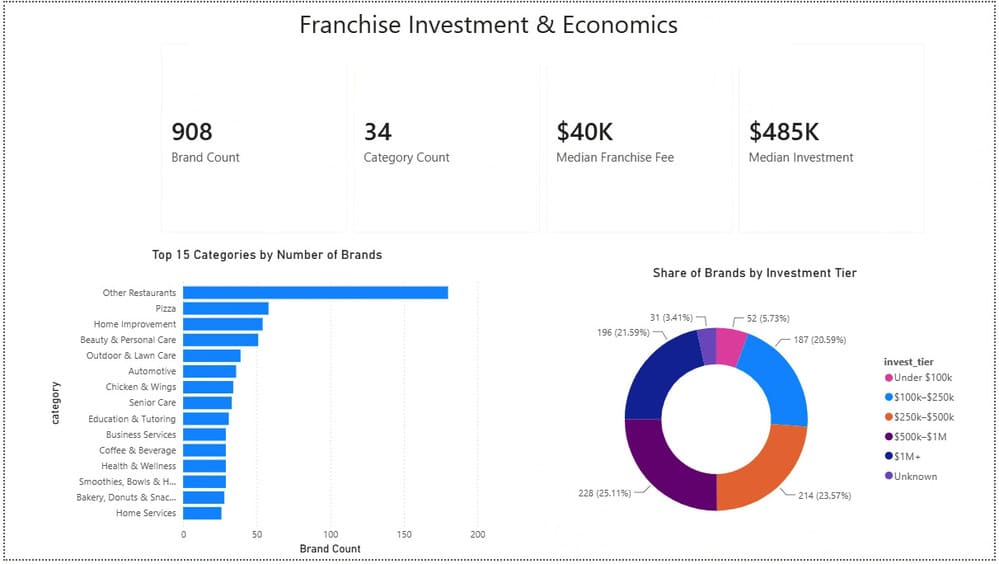
Overview
The shape of the market: how many brands, how concentrated the categories are, and how the whole corpus distributes across investment tiers.
The tier donut needed a hidden sort column — Power BI orders text alphabetically, which put "$1M+" first and "Under $100k" last and made the chart read as noise.
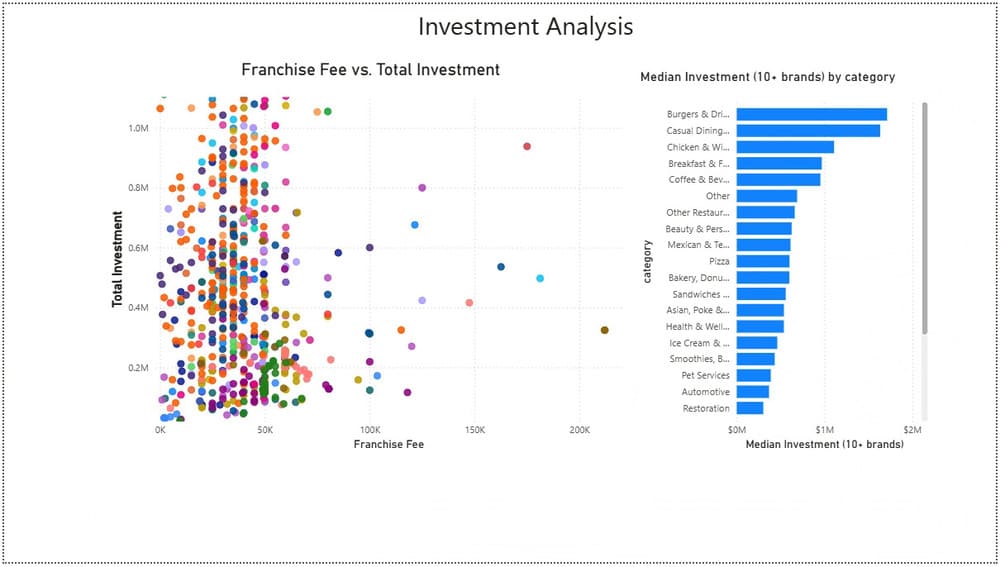
Investment analysis
Fee plotted against total investment, one point per brand. The vertical banding is the finding: at any given fee, the total cost of opening runs across orders of magnitude.
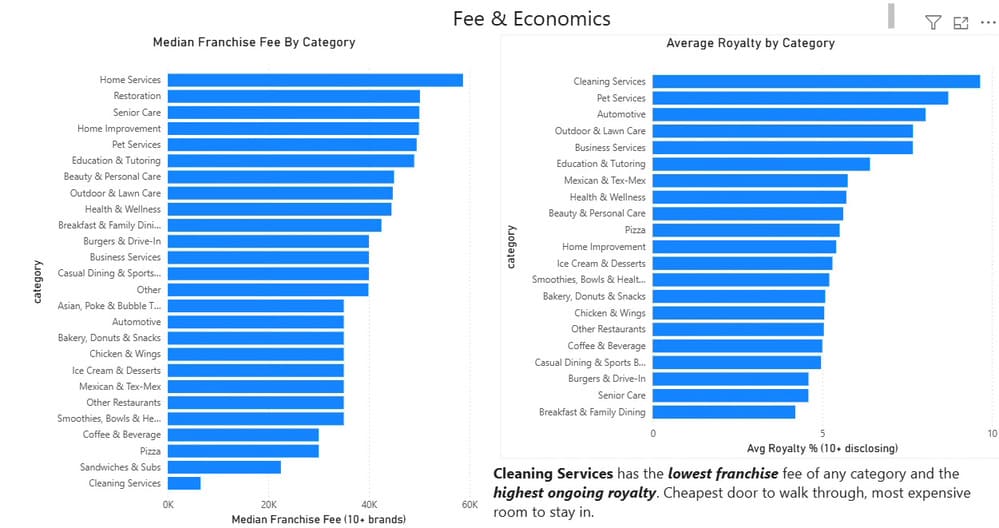
Fees & economics
Entry cost against ongoing cost, by category — the franchise fee you pay once, beside the royalty you pay for as long as you operate.
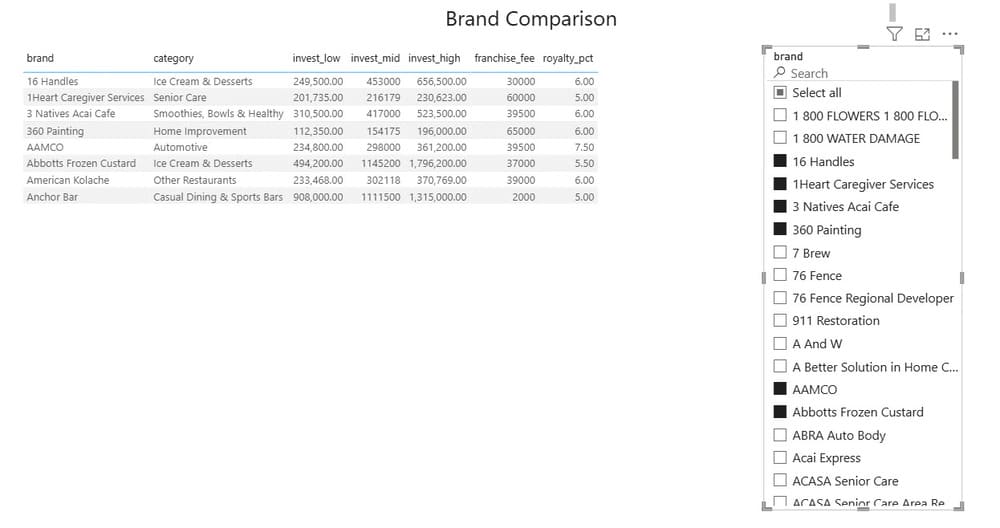
Brand comparison
A searchable, multi-select slicer driving a side-by-side table — the page a prospective buyer would actually drive, rather than read. It exists because the interesting comparison is never the one a fixed chart happens to show.
The decisions that made it trustworthy
Most of the work in this report wasn't visual. Extracted data is messy, and a dashboard that presents messy data confidently is worse than no dashboard:
- Minimum sample sizes. The first version of "median investment by category" was topped by Venue and Swim — categories containing exactly one brand each. Every category measure now returns blank below ten brands, which drops the noise and reveals the real range: a 14× spread from Burgers & Drive-In at $1.71M down to Cleaning Services at $121K.
- No partial totals. Ongoing cost is royalty plus ad fund, counted only where a brand discloses both. 402 of 908 qualify. A brand disclosing only its royalty would otherwise look cheaper than one that disclosed everything.
- No double counting. The franchise fee sits inside the total investment range for 777 of the 788 brands that publish both, so it is never added on top — doing so would overstate the cash required on almost every brand.
- Flag, don't delete. One brand's filing parses to $135 billion — a decimal error in the source PDF, not a real range. It is excluded from every median and percentile but stays visible and labelled, because silently dropping inconvenient rows is how a dataset stops being auditable.
Open the files
One .pbix per page — open any of them in Power BI Desktop to inspect the model,
the DAX measures and the visual configuration.
The same data, live in the browser
A screenshot can't be filtered. The same 908-brand table also drives a companion tool generated in Python — filter by budget and category, see each brand's cost range on a log axis against its own industry, and click through to the source figures.
Open the live cost explorer →